Record
Recording can help you save a lot of time when automating your business processes. This functionality enables you to easily capture a user’s actions on the screen and translates them into sequences.
These projects can be modified and parameterized so that you can easily replay and reuse them in as many other processes as you need.
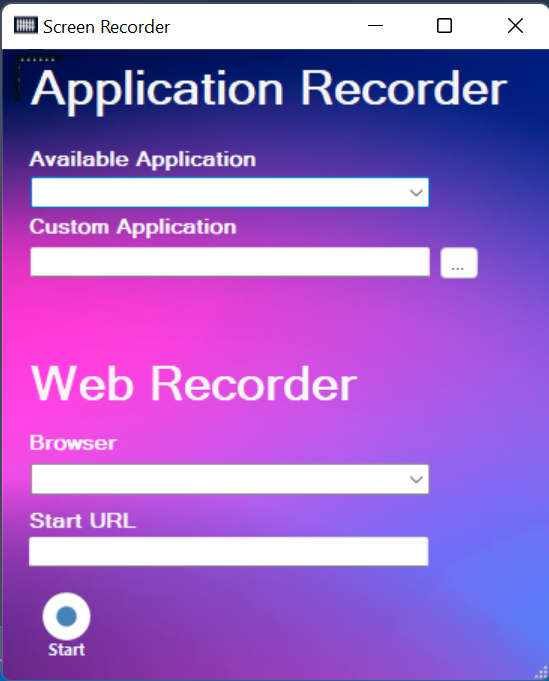
Recording toolbar enables you to automatically record multiple actions performed on the screen Manually record actions, such as:
Clicking an interface element
Selecting an option from a drop-down list
Selecting a check box
Simulating keystrokes or keyboard shortcuts
Activating a window
Example of recording with Application Recorder
Step 1: In the Tools tab, select Record.
Step 2: Select application in Available Application or Choose application in Custom Application.
Step 3: In the Screen Recorder, click Start. The automatic recording process starts.
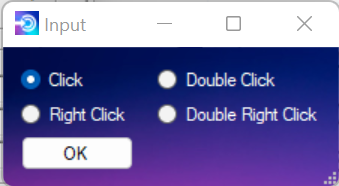
Step 4: In the application, Point mouse, Press Ctrl and click selector, A pop-up window is displayed.
Step 5: Press Stop. You exit the recording view and the saved project is displayed in the new sequence.
Automatically Generated Activities
Click - generated when you press Ctrl and click a button.
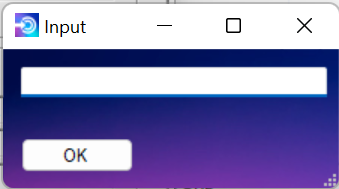
Type Into - generated when you press Ctrl and click input box, typing into a text field.
Select Item - generated when you select an item from a drop-down list or combo box and press Ctrl and click item.
Check - generated when you press Ctrl and click a radio button or check box is clicked.